
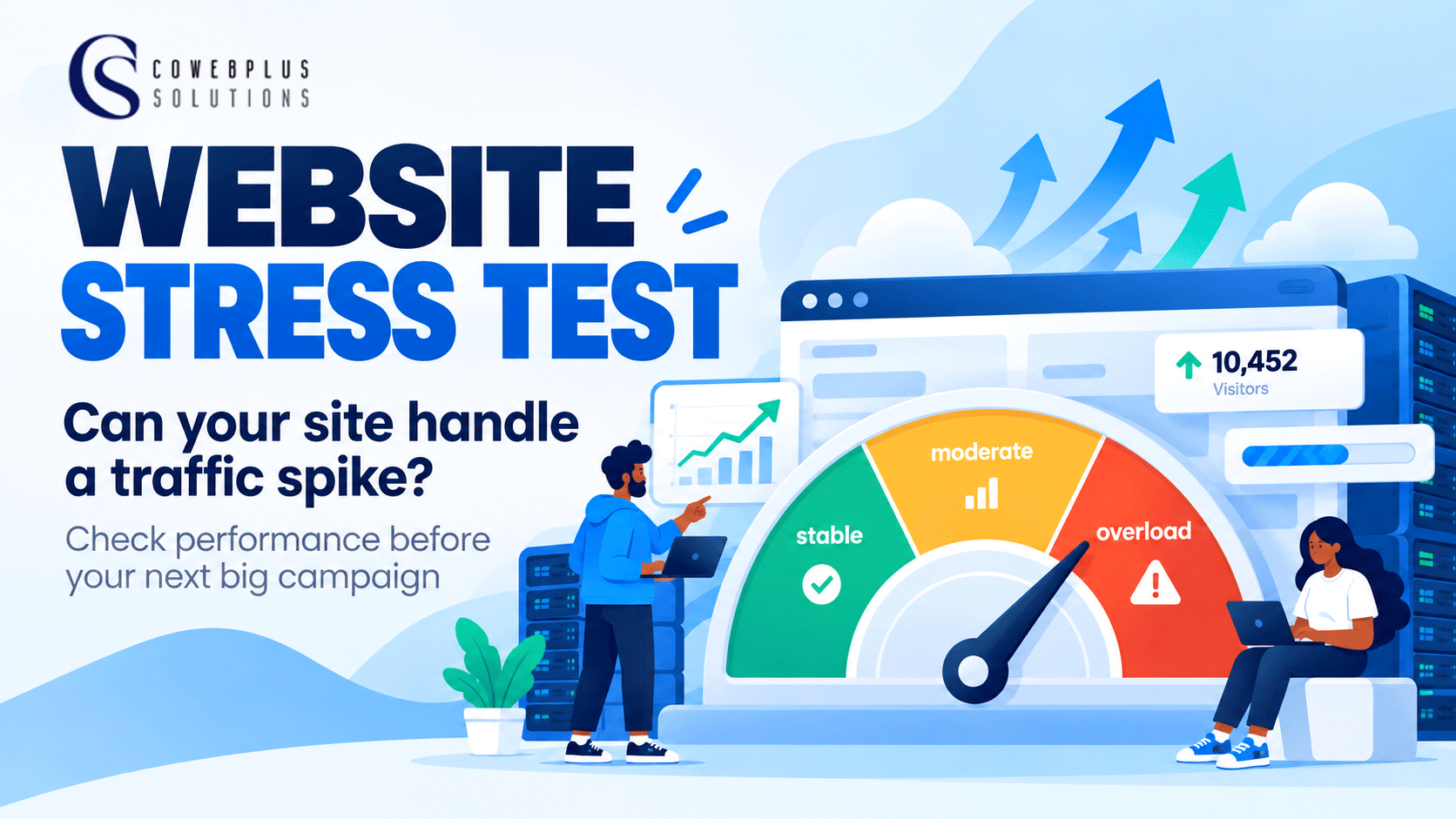
How to Stress Test Your Website Before a Big Marketing Campaign
What is a website stress test?
A stress test sends increasing amounts of simulated traffic to your website until performance starts dropping. The goal is simple: find out how many visitors your website can handle at once before it starts slowing down or returning errors.
This is different from a normal speed test.
| Test | What it checks | When to use it |
|---|---|---|
| Stress test | How much traffic your site can take before problems start | Before campaigns and promotions |
| Load test | Performance under expected traffic | When planning for regular growth |
| Speed test | How quickly pages load | For everyday performance checks |
If you expect a serious increase in visitors from a campaign, product launch or promotion, a stress test gives you a clearer picture of what your website can actually handle.
When should you stress test your website?
You don’t need to run one every week. It makes more sense when you expect traffic above your normal level.
That could be before:
- Black Friday or another major sale
- A product launch
- Paid advertising campaigns
- Influencer promotions
- A PR feature
- Holiday sales
- Moving your website to another hosting provider
- A major redesign
- Launching a new ecommerce store
For ecommerce websites, test your cart and checkout carefully. A fast homepage will not help much if people cannot complete payment.
Never stress test your live website
This part matters. A stress test intentionally puts heavy pressure on your server. Running one directly on your live website could affect real visitors or even take the site offline.
Use a staging website instead.
Your staging environment should also have server resources close to your main website. If the staging server is much weaker or stronger, your results may not represent what will happen during the actual campaign.
Start with your real traffic
Don’t pick a random number like 20,000 visitors because it sounds impressive. Check your analytics first. Look at your busiest period, highest number of active visitors and the amount of traffic you normally receive. Then estimate how much extra traffic the upcoming campaign could bring.
For example, if your website normally peaks at about 400 active users and you expect your campaign to bring three times that amount, testing around 1,200 users gives you a more meaningful starting point. You should also test slightly above your expected number. Campaign traffic does not always behave exactly as planned.
Which tool can you use?
You don’t need several tools. Pick one that matches your skill level. Loader.io is one of the simpler options. It works from your browser and lets you simulate visitors without setting up a complicated testing system.
Grafana k6 gives developers more control. You can create JavaScript test scripts, increase users gradually and repeat the same test whenever you make changes.
ApacheBench, commonly called ab, is useful if you have terminal access and want a quick server test. For example:
ab -n 1000 -c 100 https://staging.example.com/
That sends 1,000 requests with up to 100 running at the same time.
For many small business owners using WordPress, Loader.io may be easier to start with. Developers may prefer k6 because it gives them more control over different testing scenarios.
Increase the traffic gradually
Don’t immediately throw maximum traffic at the server. Start with a smaller number of users, then increase it step by step. Doing this helps you see exactly when performance starts changing. You mainly want to watch three things.
Response time: Pages should not suddenly become much slower as more visitors arrive.
Error rate: Failed requests should remain low. If errors start climbing quickly as traffic increases, something is struggling.
Throughput: This shows how many requests your server can handle over time. If traffic keeps increasing while completed requests stop increasing, you may have reached a bottleneck.
Watch out for 503 and 504 errors
You may see server errors when your website reaches its limit.
A 503 Service Unavailable error usually means the server cannot deal with the request at that moment. Heavy load can cause this.
A 504 Gateway Timeout means one server or service waited too long for another part of the website to respond.
If these errors start appearing before you reach your expected campaign traffic, you have something to fix before launch.
What happens when your website fails the test?
That is actually useful information. You would rather find the problem during testing than after hundreds of customers arrive. Start by checking your caching. Caching reduces the amount of work your server needs to repeat for every visitor. For WordPress websites, page caching can reduce pressure from people browsing public pages.
You should also compress large images. A homepage filled with unnecessarily heavy images will consume more bandwidth and take longer to load when traffic increases.
Next, review your plugins. One poorly built WordPress plugin can slow down many requests. You can disable plugins one by one on staging and repeat the test to see if performance improves.
The database can also become a problem. Large databases may contain old revisions, expired data and tables left behind by plugins.
Then there is hosting.
Sometimes you can optimise everything correctly and still find that your hosting plan simply does not have enough resources for the traffic you expect.
A simple Nigerian business example
Imagine you run an online fashion store in Lagos. Your website normally gets moderate traffic every day. Then you pay a popular creator to promote your Black Friday offer. The creator posts at 7 PM and hundreds of people start tapping your link within minutes.
That is exactly what you wanted. But your website starts returning errors. Some people refresh once or twice. Others go back to Instagram and continue scrolling. A few may buy from another store.
At that point, the problem is no longer your marketing. You successfully brought people to the website. The website simply could not handle them. That is why testing before a major campaign makes sense.
Before your campaign goes live
Run through this quick checklist:
- Test on staging, not your live website
- Keep staging resources close to your live server
- Check your current traffic peak
- Test above the traffic you expect
- Turn on suitable caching
- Compress large images
- Review heavy or unnecessary plugins
- Test your cart and checkout
- Watch for 503 and 504 errors
- Confirm your hosting still has room for extra traffic
- Keep a recent backup ready
When hosting becomes the problem
Your website can only work with the server resources available to it.
If your tests keep showing CPU, memory, database or server limitations after you have cleaned up the site, moving to a stronger hosting plan may be the next sensible step.
This is why choosing hosting based only on the lowest price can become expensive later.
A cheap plan may work perfectly when your website gets 50 visitors. The same plan may struggle when a successful campaign sends hundreds or thousands of potential customers at once.
At Cowebplus Solutions, we provide web hosting options for different website needs, so you can choose resources that match your traffic and business activity. Before spending heavily on your next campaign, test your website first.
It is better to know your website’s limit yourself than to let your customers find it for you.
Frequently Asked Questions
What is a website stress test?
It is a test that sends increasing simulated traffic to your website to see when performance begins to drop.
Is a stress test the same as a speed test?
No. A speed test mainly checks how fast your pages load. A stress test checks how your site behaves when many visitors arrive at once.
Can I stress test a WordPress website?
Yes. Create a staging copy first, then use a tool such as Loader.io or k6 to simulate traffic and watch how the website responds.
Should I run a stress test on my live website?
No. Use staging because the test intentionally puts pressure on your server.
How many visitors should I simulate?
Use your real analytics. Start with your normal traffic peak, estimate what your campaign could bring and test above that figure.
Leave a Reply
Your email address will not be published. Required fields are marked.