
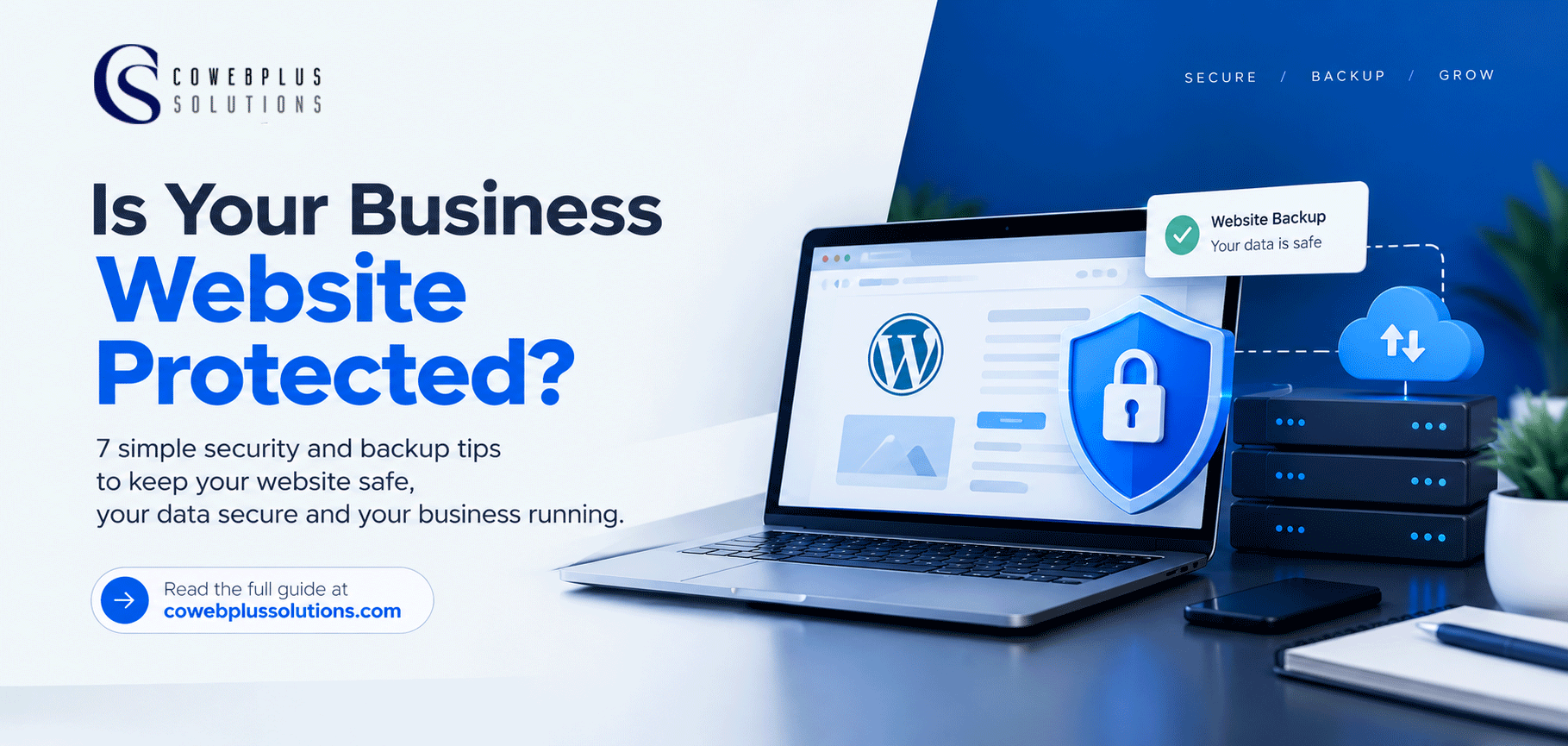
How to Protect Your Business Website: 7 Simple Website Security and Backup Tips
Learn how to reduce website security risks, protect your business data and prepare for unexpected problems without needing to be a technical expert.
Your website may be working perfectly today. Customers can visit your pages, send enquiries, place orders and contact your business without any problems.
But what happens if someone hacks it tomorrow? What if a plugin update breaks your website? Or what if you accidentally delete an important page and cannot recover it?
These problems can happen to small business websites too. You do not need to be a large company before your website becomes a target or an unexpected technical problem affects your business.
The good news is that you can take practical steps to reduce these risks.
In this guide, we will explain seven simple ways to protect your business website, keep your information safer and prepare for situations that could take your website offline.
1. Use strong passwords and protect your login details
Your website login is one of the first places you should secure.
If someone gets access to your administrator account, they may be able to change your pages, create unauthorised accounts, install harmful software or access information you manage through the website.
Avoid passwords that contain your business name, your birthday, your phone number or other details people can easily guess.
Use a strong, unique password for your website. Do not reuse the same password across your email, hosting account, website dashboard and other services.
If your website uses WordPress, also check who has administrator access. Not everyone who writes a blog post or updates a product needs full control of the website.
What you can do today:
• Create a strong password that you do not use anywhere else.
• Remove accounts belonging to people who no longer manage the website.
• Give each user only the access they need.
• Enable two factor authentication where it is available, especially for administrator and hosting accounts.
These steps make it harder for someone to gain control of your website through a compromised login.
2. Keep your website software updated
If your website runs on WordPress, you probably use a theme and one or more plugins to add features.
These tools need maintenance. Developers release updates to fix bugs, improve compatibility and address security weaknesses.
When you leave your website software outdated for too long, you may leave known weaknesses unresolved.
However, do not rush to update everything without preparation. An update can sometimes conflict with another plugin or change how your website behaves.
Before major updates, create a fresh backup. Then update your software and check that important pages, forms, payments and other features still work properly.
Your update checklist:
• Keep WordPress updated.
• Update themes and plugins from trusted sources.
• Remove plugins and themes you no longer use.
• Avoid downloading premium themes or plugins from unknown websites.
• Check your website after important updates.
A website is not a one time project. It needs regular attention after launch.
3. Make regular website backups
Imagine spending months building your business website, adding product information, publishing articles and receiving customer enquiries.
Then something goes wrong, and you discover that you have no recent copy of your website.
That is why backups matter.
A website backup is a saved copy of important website files and data. Depending on the backup, it may include your pages, images, website settings, database and other information needed to restore the site.
If something breaks, a usable backup can help you recover without rebuilding everything from the beginning.
Do not assume that your website is being backed up simply because you pay for hosting.
Check your hosting plan and ask your provider:
• Are backups created automatically?
• How often are they created?
• How long are they kept?
• Can I restore a backup myself, or do I need support?
• Are website files and the database both included?
• Is there an additional fee for restoration?
These questions help you understand what protection you actually have.
Cowebplus Solutions lists daily, weekly and monthly backups among the features of its shared hosting plans. You should still understand the applicable backup policy and restoration process for your particular account before relying on it.
4. Keep a copy of your backup somewhere else
Creating backups is important, but where you keep them matters too.
If your only backup is stored in the same hosting account as your website, an account compromise or serious server problem could affect both the website and its backup.
Where practical, keep an independent copy in a separate, secure location. This could be suitable cloud storage or another protected storage system.
Make sure access to that backup is also protected. A backup that anyone can access or delete does not provide much protection.
You should also avoid assuming that a backup is useful simply because a file exists. Sometimes a backup may be incomplete or difficult to restore.
Test your restoration process periodically, preferably in a staging environment or with the help of your hosting provider.
The goal is simple: if your website stops working, you should know where a clean copy is and how to recover it.
5. Understand what an SSL certificate does
You may have noticed that some websites begin with https:// and display a padlock symbol in the browser.
This usually indicates that the website is using HTTPS with a valid TLS certificate to encrypt information sent between the visitor’s browser and the website.
That matters when people submit forms, sign in or send other information through your website.
However, there is an important distinction: an SSL certificate does not protect your entire website from every security threat.
It does not automatically prevent weak passwords, malicious plugins, unauthorised access or every type of attack.
Think of HTTPS as one part of your website’s protection, not the whole security system.
Check that your certificate is valid, that your website loads securely and that visitors are not seeing browser security warnings.
If your website accepts payments or personal information, you should also review the security of the systems handling that information.
6. Watch for unusual activity and security warnings
You do not have to wait until your homepage changes or your website goes offline before investigating a possible security problem.
Pay attention to unexpected changes and warnings.
For example, you may notice unfamiliar administrator accounts, pages you did not publish, suspicious redirects, unexpected pop ups or warnings from your hosting provider.
Your website may also become unusually slow or start displaying errors. These symptoms do not automatically mean your site has been hacked, but they deserve attention.
Use reputable security tools where appropriate, and check whether your hosting plan includes malware scanning. Cowebplus Solutions lists free malware scanning among the features of its shared hosting plans.
If you suspect that your website has been compromised, contact your hosting provider or a qualified website security professional. Avoid deleting random files or restoring an old backup without checking the situation first. You could lose important data or restore a version that is already compromised.
After an incident, investigate how the problem happened and address the weakness before considering the website fully recovered.
7. Choose hosting that supports your website’s needs
Website security is not only about what you do inside your website dashboard. Your hosting environment and the support available to you also matter.
A hosting provider can help you understand available backups, server level protections, malware scanning, account access and recovery options.
Before choosing a hosting plan, look beyond the monthly price. Find out what security features are included, what they actually cover and what happens when you need help.
For a small business website, this does not necessarily mean buying the most expensive plan. It means choosing a suitable plan and understanding its limits.
Ask practical questions:
• What backup options are available?
• What security features are included?
• How do I contact support if my website stops working?
• What happens if my website is compromised?
• Can my hosting plan support the website as my business grows?
A suitable hosting plan, combined with good website maintenance, can make managing your online presence less stressful.
A simple website protection checklist
You do not need to fix everything in one day. Start with the basics and build a routine around them.
Use this checklist to review your website:
- My website administrator password is strong and unique.
- Only the right people have access to my website.
- WordPress, themes and plugins are updated.
- I know whether my website is backed up automatically.
- I know where my backups are stored.
- I understand how to restore my website.
- My HTTPS certificate is valid.
- I know how to check for suspicious activity.
- I know how to contact my hosting provider for help.
If you cannot tick several of these boxes, do not panic. Use the checklist as a starting point for improving your website’s protection.
Your website is part of your business. It may help customers discover your services, learn about your products, contact your team or place orders.
Protecting it should be part of running the business, not something you think about only after a problem occurs.
Use strong passwords. Keep your software updated. Maintain reliable backups. Understand what your SSL certificate does, and make sure you know how to get help when something goes wrong.
Most importantly, do not wait for a website problem to find out whether your protection is good enough.
Need hosting for your business website?
Cowebplus Solutions provides web hosting with features including SSL certificates, malware scanning and scheduled backups on its shared hosting plans.
Visit https://cowebplussolutions.com/ to explore the available hosting options. If you already have a website with us, contact support if you need help understanding your backup arrangements or restoration process.
Protect your website today so that an unexpected problem does not become a bigger business problem tomorrow.
Leave a Reply
Your email address will not be published. Required fields are marked.