

How to Install WordPress easily with the help of Softaculous
WordPress installation has never been easier with help of Softaculous. Softaculous is an application within cPanel for installing different types of content
management system (CMS) such as Prestashop, Open cart, Magento, and so on. We will be focusing on the installation of WordPress in this article.
I have highlighted the major steps to install WordPress successfully below:
- In the cPanel window, you can scroll down to the bottom section or use the search bar at the top to navigate to Softaculous.
- Login into your cPanel. Your cPanel details will be sent to your email as soon as you make payment for your hosting.
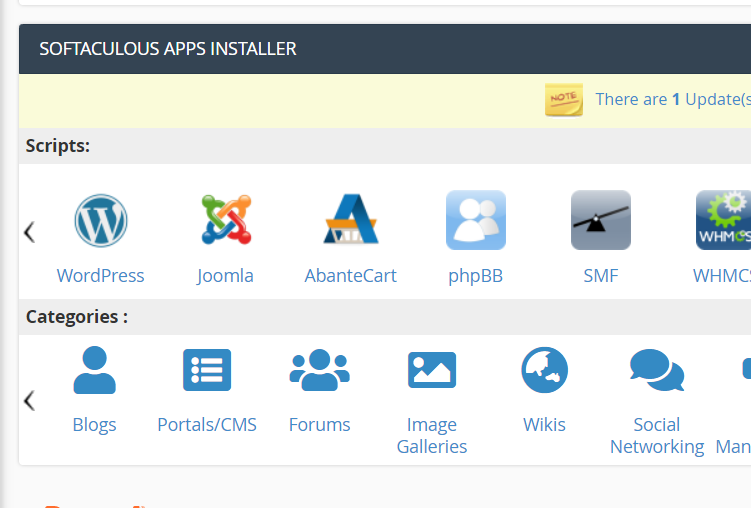
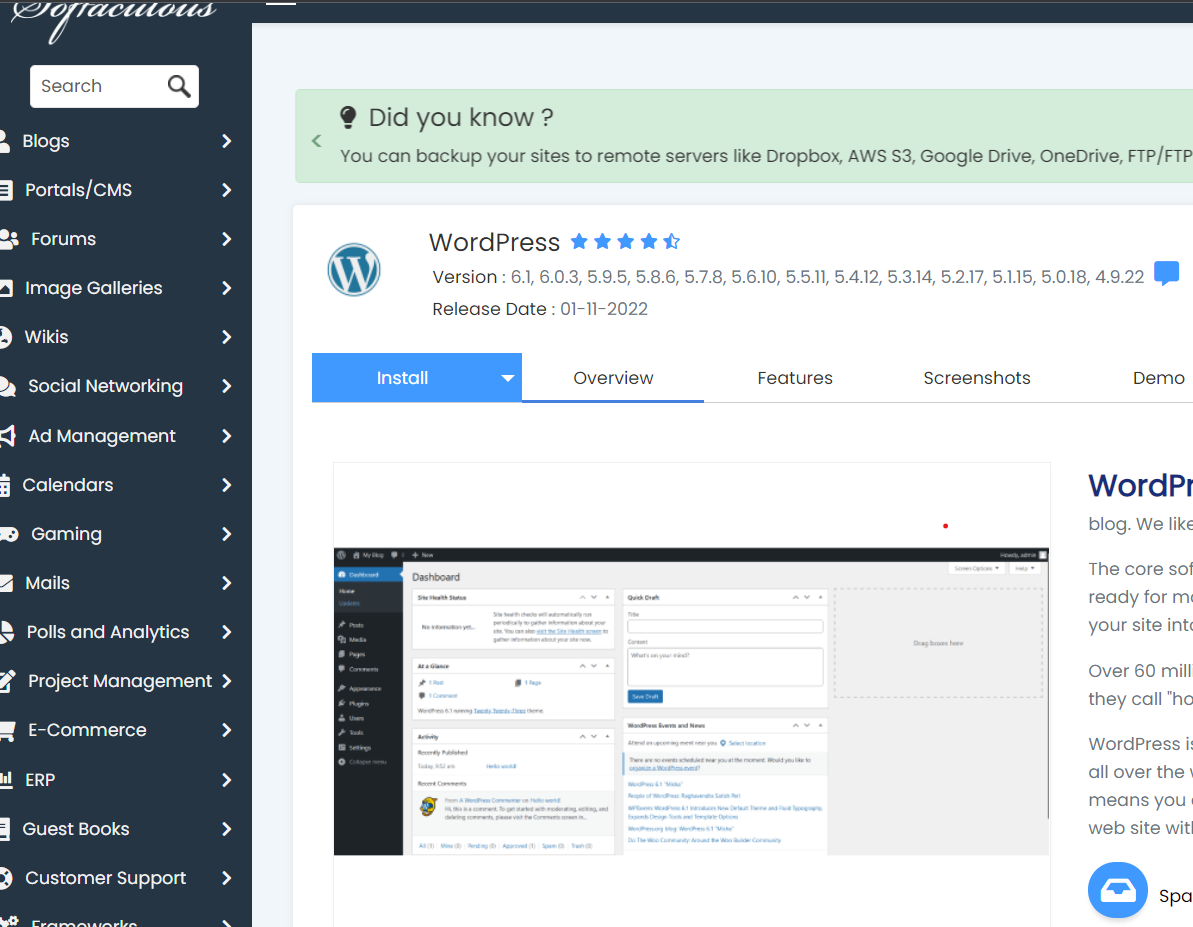
- From the Softaculous section, click on the WordPress icon. As indicated in the image, WordPress is the first logo with a W shape.
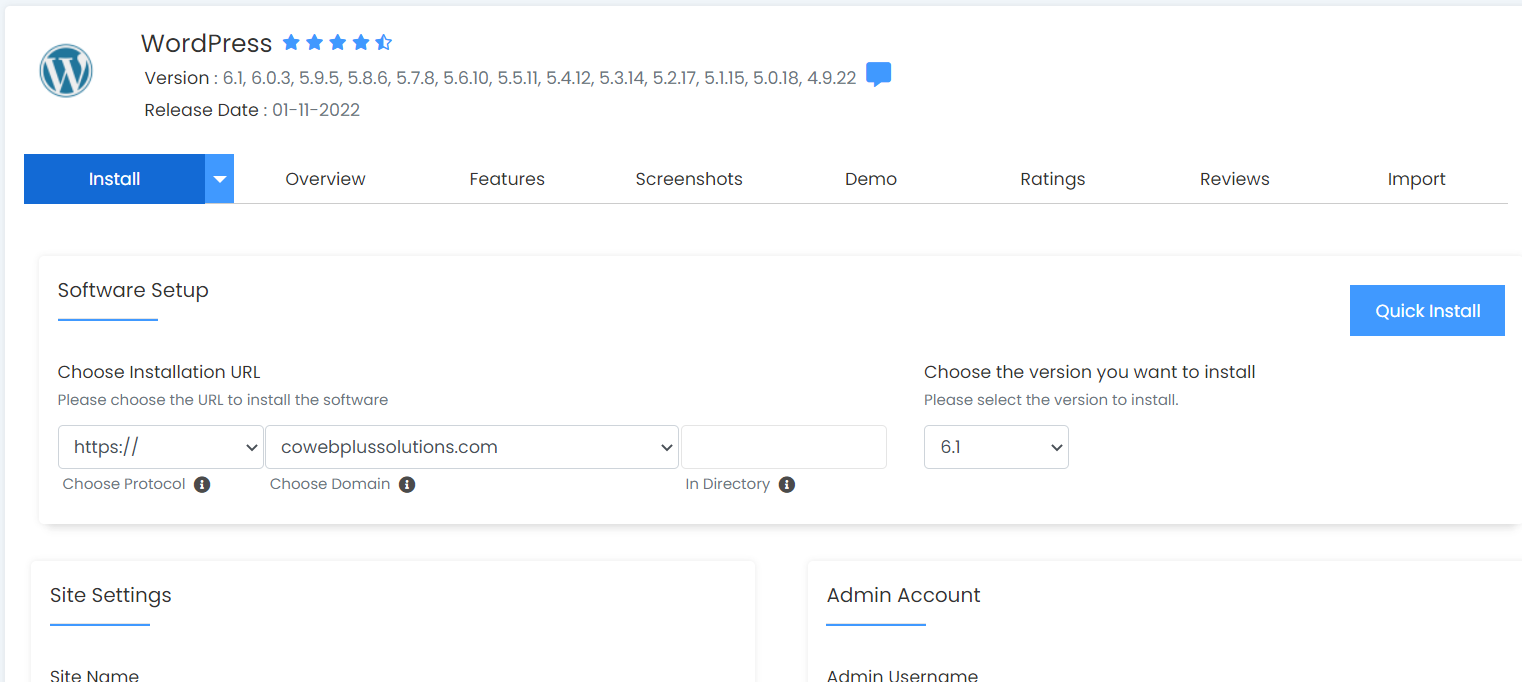
- Populate your website domain details. We do not recommend use add anything to ‘in directory’ if you are not using a subdomain.
- Proceed to other fields, we recommend you do not use ‘admin’ as your username because this name is generic and not so good for site security, use a unique name. use a very strong password as generated in the softaculous. Make sure you save the password
somewhere secure.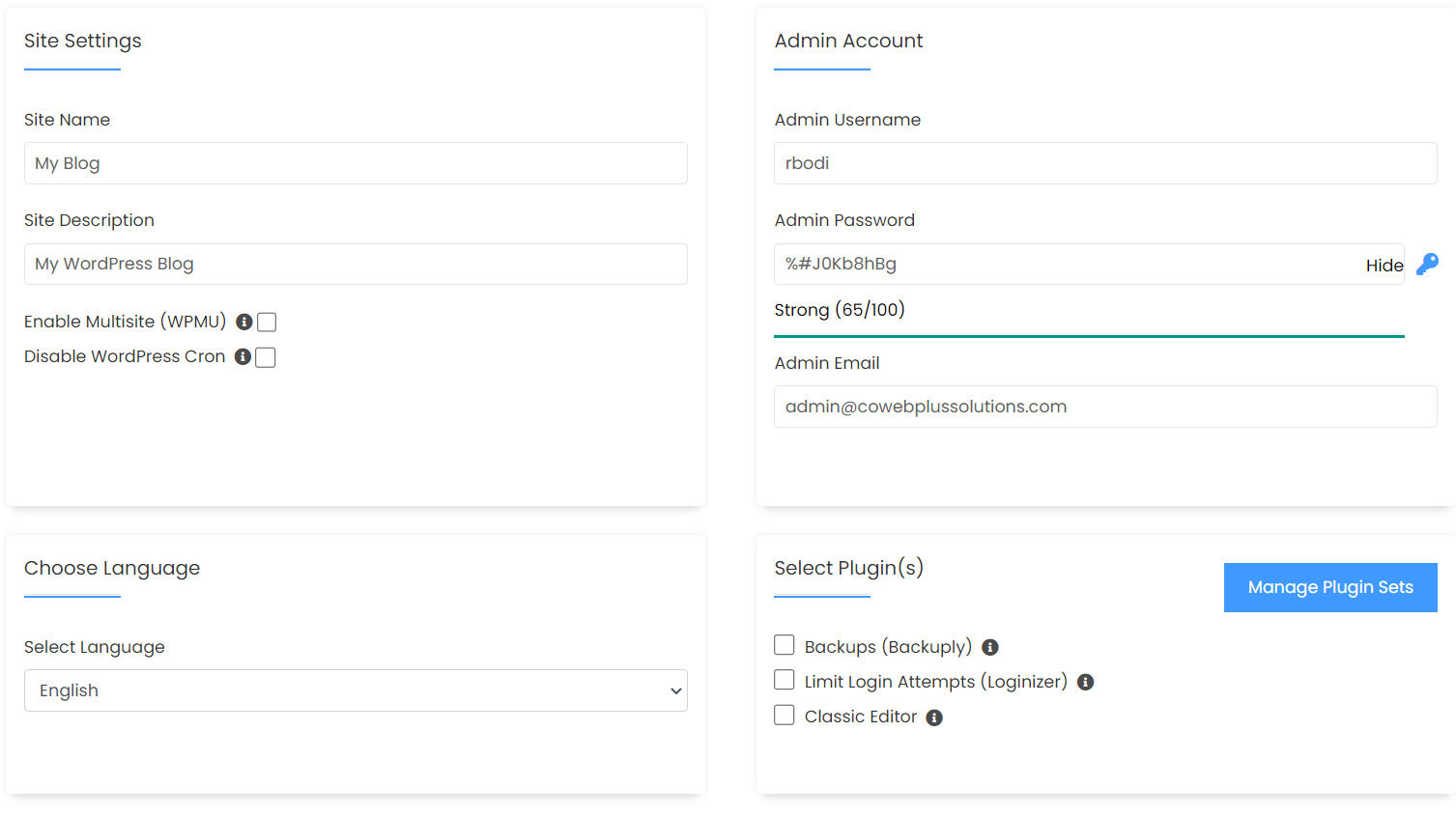
- Choose a theme of your choice, though this step is optional because WordPress also comes
with default themes.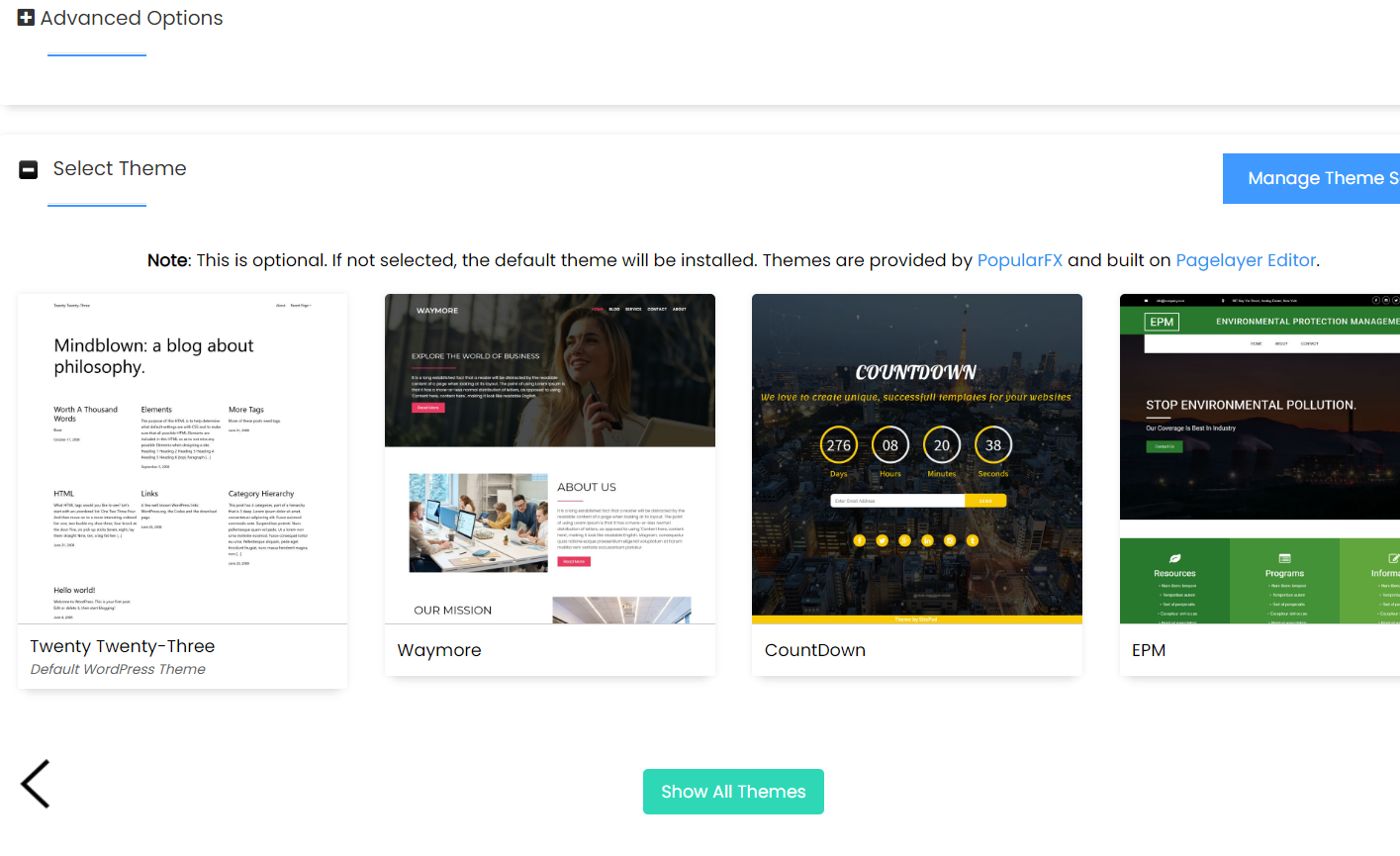
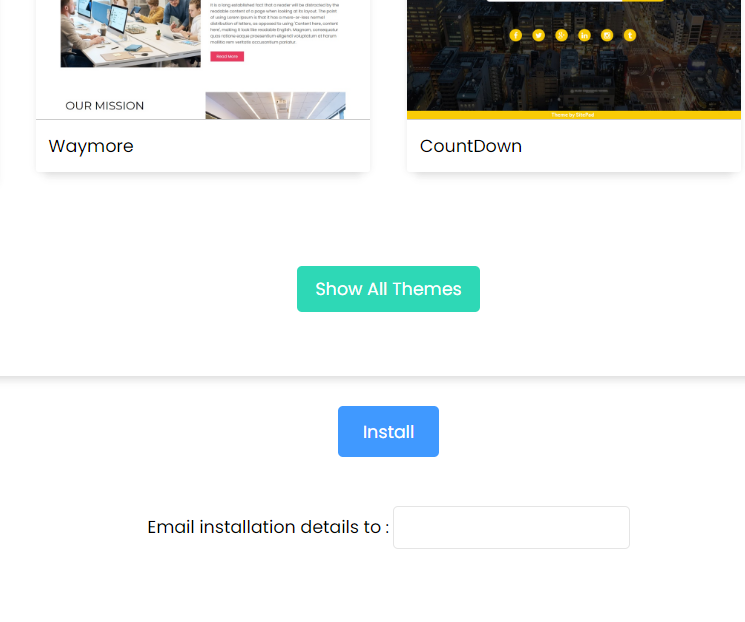
- The last step is to install, and Voila, your website has been installed successfully.
This process is as easy as ABC if you follow along thoroughly. We would be glad to get feedback
from you if we had helped you in the installation process. On the other hand, feel free to send us
a message via the contact form in case you run through any difficulty, we will be glad to help.
Leave a Reply
Your email address will not be published. Required fields are marked.