
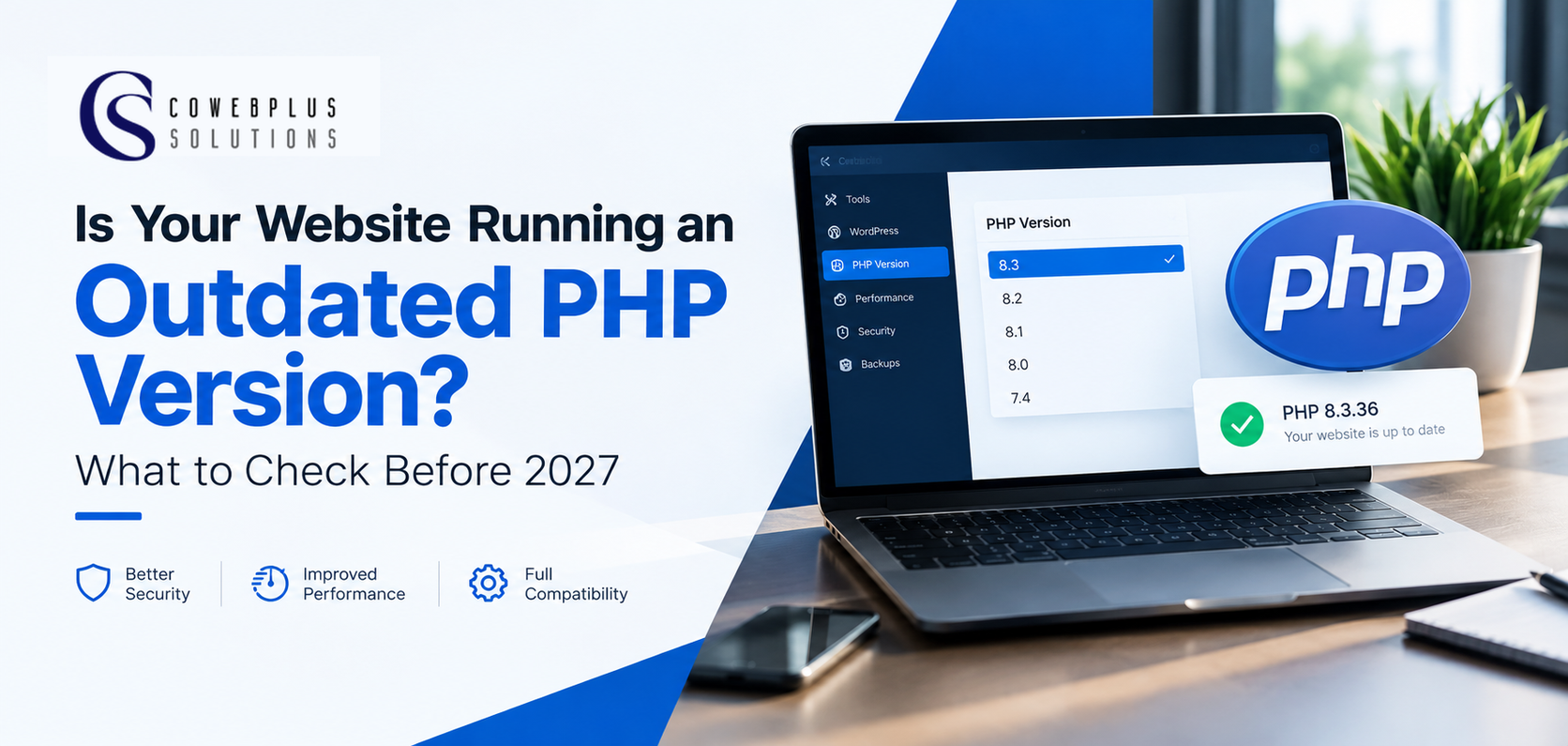
Outdated PHP: What to Check on Your Website Before 2027
Site maintenance and version checks
Your site may appear fine while running software that is no longer supported. This guide explains how to check your Outdated PHP version and what to do before year end.
Your website opens normally. Your contact form works. Customers can browse your products, and your business is receiving inquiries. So, everything is fine, right?
Not necessarily.
The software running behind your website needs attention too. One important part of that software is PHP, a programming language used by WordPress and many other websites.
On 21 October 2026, the PHP team released urgent updates to fix two critical vulnerabilities. It also confirmed that PHP 8.2 will reach the end of its official support on 31 December 2026. After that date, it will no longer receive official security fixes from the PHP project. Read the official PHP announcement.
If you own a business website, this is worth checking before the year ends.
What exactly is PHP?
PHP is a programming language that helps websites perform tasks behind the scenes.
When someone opens a WordPress website, PHP helps process the request, retrieve information from the database and generate the page the visitor sees.
It can also support functions such as user accounts, contact forms, shopping carts and other website features.
Your hosting environment determines which PHP versions are available for your website.
That means keeping your website up to date is not only about updating WordPress, your theme and your plugins. You should also know which PHP version your hosting account is using.
Why should you care about your PHP version?
There are three main reasons.
1. Older versions can stop receiving security fixes
Software developers regularly release updates to fix problems discovered after a version has been released.
When a PHP version reaches the end of its official support, the PHP project stops providing security updates for that version.
If a new vulnerability is discovered later, an unsupported version may remain exposed unless another suitable fix is available.
That is why website owners should plan upgrades before support ends rather than waiting for a problem to appear.
2. Your website may miss useful improvements
Newer supported PHP versions can offer performance improvements and other technical benefits.
However, upgrading does not automatically make every website faster. Your theme, plugins, code and hosting resources also affect performance.
The important thing is to use a version that is supported and suitable for your website.
3. Your website may not work properly after an upgrade
This is the part many website owners overlook.
An older WordPress theme or plugin may not be compatible with a newer PHP version. Changing versions without checking compatibility can cause errors or break some website functions.
That does not mean you should avoid upgrading. It means you should plan the upgrade properly.
Which PHP versions should website owners check before 2027?
PHP released updated versions on 21 October 2026 to address two critical vulnerabilities. The patched releases include PHP 8.5.12, 8.4.27, 8.3.36 and 8.2.35. The PHP project advises users to update to the appropriate fixed release. See the official release information.
PHP 8.2 has an additional deadline: official support ends on 31 December 2026.
If your website is using PHP 8.2, you should begin planning a move to a newer supported version that is compatible with your website.
If your website is running PHP 8.1 or an even older version, do not assume that it is safe simply because it still works. Those older versions are no longer receiving official security updates from the PHP project.
Your hosting provider or developer can help you identify the right upgrade path.
How to check your website’s PHP version
If you use WordPress, you can check your PHP version without installing another plugin.
Follow these steps:
- Log in to your WordPress dashboard.
- Open Tools.
- Select Site Health.
- Open the Info tab.
- Expand the Server section.
- Look for the PHP version listed there.
WordPress also documents this process in its guidance about PHP security updates.
You may be able to find the same information in your hosting control panel.
If you cannot locate it, contact your hosting provider and ask which PHP version your website is running.
What should you do if your PHP version is outdated?
Do not rush to change the version without checking your website first.
Use this simple process.
Step 1: Back up your website
Create a recent backup of your website files and database before making major changes.
Confirm that the backup can be restored. A backup is much more useful when you know it works.
Step 2: Check your WordPress setup
Update WordPress, your theme and your plugins where appropriate.
Review whether the software you use supports the PHP version you plan to install.
If your website depends on a custom theme or plugin, ask the developer to confirm compatibility.
Step 3: Ask your hosting provider about supported versions
Find out which PHP versions are available in your hosting account.
Ask which supported version is recommended for your website and whether your account can use it.
If your provider cannot offer a suitable supported version, discuss your options before making a decision.
Step 4: Test before making the change permanent
Where possible, test the new PHP version on a staging website first.
Check your homepage, contact forms, login page, checkout process and other important functions.
If you notice errors, investigate them before applying the change to your live website.
Step 5: Confirm that everything works afterwards
Once the upgrade is complete, open your website and test its important features.
Check for error messages, broken layouts and plugin problems.
If something stops working, contact your developer or hosting provider for assistance.
Does your hosting provider handle PHP updates for you?
That depends on your hosting arrangement and the services included in your plan.
Some hosting environments allow customers to select a PHP version through their control panel. In other cases, the hosting provider manages more of the server configuration.
Do not assume that your website is using a supported version simply because your hosting account is active.
Ask your provider:
- Which PHP version is my website currently using?
- Is that version still supported?
- Which supported versions can I use?
- Will my WordPress theme and plugins work with the recommended version?
- Can you help me upgrade if I need assistance?
These questions help you understand whether you need to take action yourself or work with your hosting provider.
What if you cannot upgrade immediately?
If your website depends on outdated software, speak with your hosting provider or developer as soon as possible.
They can help you understand the risks, identify compatibility problems and plan a safe upgrade.
For the critical vulnerabilities announced on 21 October, the PHP project says there are no complete mitigations and that updating is the only safe choice. If your server runs an affected PHP version, do not treat a routine website backup or a WordPress plugin update as a substitute for fixing the PHP runtime.
If your hosting provider manages the server, contact them urgently to confirm what has been updated and what action is still required.
A website can look perfectly normal on the surface while depending on software that needs an update.
That is why website maintenance should go beyond publishing new content and updating plugins. You also need to pay attention to the software that runs your website behind the scenes.
Before 2027 arrives, check your PHP version, confirm whether it is supported, and plan any necessary upgrade with your hosting provider or developer.
Do not wait until your website develops a problem before asking what is running behind it.
At Cowebplus Solutions, we believe reliable hosting should give businesses a better foundation for running their websites.
If you need help understanding your hosting environment or choosing a suitable hosting plan, visit https://cowebplussolutions.com
Leave a Reply
Your email address will not be published. Required fields are marked.